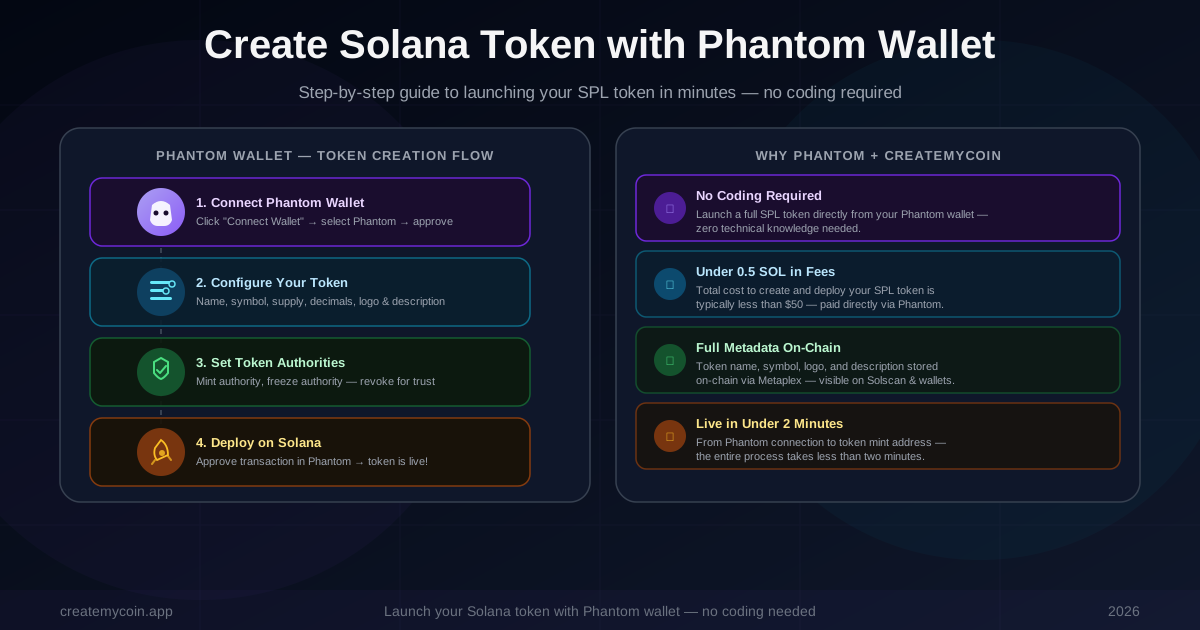
Why Phantom Is the Best Wallet for Solana Token Creation
When it comes to creating a Solana token, your choice of wallet matters. Phantom has become the go-to Solana wallet for millions of users — and for good reason. It is fast, secure, and integrates seamlessly with the Solana ecosystem, including token creator tools like CreateMyCoin.
Phantom handles all the cryptographic signing under the hood, so you never have to manage private keys manually. You simply approve transactions in the wallet popup, and the token creation tool handles the on-chain interactions. This combination makes it possible to create a Solana token with Phantom wallet in under two minutes — even if you have never written a line of code.
Key point: Phantom is a non-custodial browser extension and mobile wallet that supports Solana's SPL token standard. When you create a token through CreateMyCoin, Phantom signs the transactions on your behalf — you always remain in full control of your keys and your new token.
In this guide we will use Phantom with CreateMyCoin to launch an SPL token on Solana mainnet. The steps below apply equally to a community memecoin, a DeFi governance token, or any other Solana-based digital asset you want to create.
What You Need Before You Start
Before you create a Solana token with Phantom wallet, make sure you have the following ready:
- Phantom Wallet installed — as a browser extension (Chrome, Firefox, Brave, Edge) or mobile app (iOS / Android). We cover installation in the next step.
- SOL for transaction fees — creating and minting an SPL token costs approximately 0.02–0.05 SOL in rent and transaction fees. Having 0.4 SOL in your wallet is more than enough.
- Token details decided — your token name, ticker symbol (2–6 characters), total supply, number of decimals (0 for NFT-like tokens, 6–9 for fungible tokens), and optionally a logo image.
- Token description — a short description of your token's purpose, which gets stored as on-chain metadata and displayed in wallets and explorers.
- Logo file (optional) — a square image (PNG or SVG recommended) under 1 MB. This becomes the token's icon in Phantom, Solscan, and decentralised exchanges.
Step 1: Install & Set Up Phantom Wallet
If you already have Phantom installed and funded with SOL, skip to Step 2. Otherwise, here is how to get set up in under five minutes.
Install the Phantom Browser Extension
- Open your browser and search for "Phantom wallet" or visit the official Phantom website directly (phantom.app). Download the extension for Chrome, Firefox, Brave, or Edge.
- Click "Add to Browser" and pin the Phantom extension to your browser toolbar so it is easy to access.
- Open Phantom and select Create a new wallet. You will be shown a 12-word Secret Recovery Phrase.
- Write down your Secret Recovery Phrase on paper and store it somewhere safe. Never share it with anyone. This phrase is the only way to recover your wallet if you lose access to your device.
- Set a strong password for the extension (this is used to unlock Phantom on your device, separate from your recovery phrase).
- Your Phantom wallet is now ready. You will see your Solana address at the top — it looks like
7xKXtg2CW….
Fund Your Phantom Wallet with SOL
You need a small amount of SOL to pay for on-chain transaction fees. Copy your Solana address from Phantom and send at least 0.4 SOL to it from an exchange or another wallet. Once the SOL appears in Phantom (usually within a few seconds on Solana), you are ready to create your token.
Step 2: Connect Phantom to CreateMyCoin
With Phantom installed and funded, the next step is to connect it to a Solana token creator. CreateMyCoin is purpose-built for this use case: it handles the smart contract interactions, metadata upload, and on-chain deployment automatically, requiring only your Phantom signature at each step.
- Navigate to createmycoin.app in the same browser where you have Phantom installed.
- Click the Connect Wallet button in the top-right corner of the page.
- A wallet selection popup will appear. Click Phantom.
- Phantom will open and ask you to Connect to createmycoin.app. Review the permissions (it will only ask to view your public address — it cannot move your funds without your approval on each transaction) and click Connect.
- Your wallet is now connected. You will see your wallet address shown in the top-right corner of the site, along with your SOL balance.
Step 3: Configure Your Solana Token
Once Phantom is connected, you will see the token creation form. This is where you define every aspect of your SPL token. Take your time here — most of these fields are stored permanently on-chain and cannot be changed later (unless you keep mint authority active).
Token Name
Enter the full name of your token, for example My Community Token. This is the name that appears in Phantom wallets, on Solscan, and on decentralised exchanges. It can contain spaces and uppercase letters. Maximum 32 characters.
Token Symbol
The ticker symbol is the short identifier for your token (like SOL, BTC, or ETH). Keep it between 2 and 6 characters, all uppercase. This appears on price charts and in trading interfaces. For example: MCT.
Total Supply
The total number of tokens to mint at creation time. Common choices are 1,000,000 (1 million) for community tokens, 1,000,000,000 (1 billion) for memecoins, or a custom amount. If you plan to keep mint authority active you can mint more later; if you will revoke it, this is your fixed total supply.
Decimals
Decimals define the smallest divisible unit of your token. The Solana standard is 9 decimals (like SOL itself), which allows very small fractional amounts. Use 6 for a USDC-like stablecoin. Use 0 if you want whole numbers only (useful for NFT-like tokens or vouchers).
Description
A short description of your token — what it is for and what community or project it represents. This is stored on-chain as part of the Metaplex metadata and displayed in explorers.
Logo Image (Optional)
Upload a square image (PNG or SVG recommended, under 1 MB). CreateMyCoin uploads this to decentralised storage and links it in your token's on-chain metadata. The logo will appear in Phantom wallets and on Solscan once the metadata propagates.
Pro tip: Spend time on your token symbol and supply — these create a strong first impression. A clean 3–4 letter ticker and a round supply number (1B, 100M) look more professional and are easier to remember.
Step 4: Understand and Set Token Authorities
Token authorities are permissions that control what can be done with your SPL token after launch. Understanding these is critical before you deploy — they directly affect how investors and community members perceive your token's trustworthiness.
You can choose to revoke these authorities during the creation process in CreateMyCoin, or you can do it later from the token management dashboard. Both options use Phantom to sign the revocation transaction.
Step 5: Deploy Your SPL Token on Solana
With all your token details filled in, it is time to deploy. Here is what happens when you click the Create Token button:
- CreateMyCoin validates your inputs and prepares a series of Solana transactions: creating the mint account, initialising the SPL token, uploading metadata to decentralised storage, and minting the initial supply to your wallet.
- Phantom opens automatically and shows you the first transaction to approve. Review the estimated SOL cost (typically 0.02–0.05 SOL) and click Approve.
- Depending on your settings, Phantom may request 2–3 transaction approvals in sequence. Each one represents a specific on-chain action. Approve them in order.
- After the final approval, CreateMyCoin broadcasts the transactions to the Solana network. Given Solana's average block time of 400ms, confirmation usually arrives within 2–5 seconds.
- Once confirmed, CreateMyCoin displays your token mint address — a unique public key like
Gh9ZwEmdLJ8DscKNTkTqPbNwLNNBjuSzaG9Vp2KGtKJr. Copy and save this address — it is the permanent identifier for your token on the Solana blockchain.
Step 6: Verify Your Token on Solscan
After deploying your token, it is good practice to verify everything looks correct on a Solana block explorer. Solscan is the most widely used explorer for SPL tokens and will show you all on-chain data about your new token.
- Copy your token's mint address from the CreateMyCoin confirmation screen.
- Go to solscan.io and paste your mint address into the search bar.
- Solscan will show your token's Token Overview page. Verify: the token name, symbol, total supply, number of holders (should be 1 — your wallet), and decimals all match what you configured.
- Under the Metadata tab, confirm your description and logo URI are stored correctly on-chain.
- Check the Authorities section to verify which authorities are active or revoked, depending on your choices during creation.
Note: Logo images may take a few minutes to propagate and appear on Solscan. This is because the image metadata needs to be indexed by Solscan's off-chain systems. The on-chain data is immediately confirmed; the visual display catches up shortly after.
You can also verify your token in Phantom by tapping the token in your wallet and selecting "View on Solscan." This is the same link you will share with your community to prove your token's on-chain existence and contract details.
After Launch: Next Steps
Creating your SPL token is only the beginning. Here are the most important next steps after you successfully create a Solana token with Phantom wallet:
Revoke Mint and Freeze Authority (If You Haven't Already)
If you did not revoke these during creation, do it now. Head back to CreateMyCoin's token management dashboard, connect Phantom, and revoke both authorities in two quick transactions. This dramatically increases your token's credibility.
Add Liquidity on a DEX
To make your token tradeable, you need to create a liquidity pool. Raydium and Orca are the two most popular Solana DEXs for new token launches. You will need to pair your token with SOL or USDC. Adding liquidity makes your token discoverable on DEX aggregators like Jupiter.
Share Your Mint Address
Your token's mint address is its on-chain identity. Share it in your community, on social media, and in your project's documentation so people can find and add your token to their wallets. In Phantom, anyone can add your token manually by clicking the "+" icon and pasting the mint address.
Build Your Community
A token's value comes from its community. Create a Telegram or Discord server, post on X (Twitter), and explain your token's purpose clearly. Transparency builds trust — share your Solscan link and your authority revocation transactions as proof of legitimacy.
Consider Token Distribution
Think about how you will distribute tokens: airdrops, public sales, team allocations with vesting schedules. A well-thought-out tokenomics model signals that your project is serious and sustainable. See our guide on Solana token vesting for locking team allocations.
Frequently Asked Questions
Ready to Create Your Solana Token?
Connect your Phantom wallet and launch your SPL token on Solana in under 2 minutes — no coding required.
Create My Token Now →Powered by Solana · Full on-chain metadata · Phantom compatible